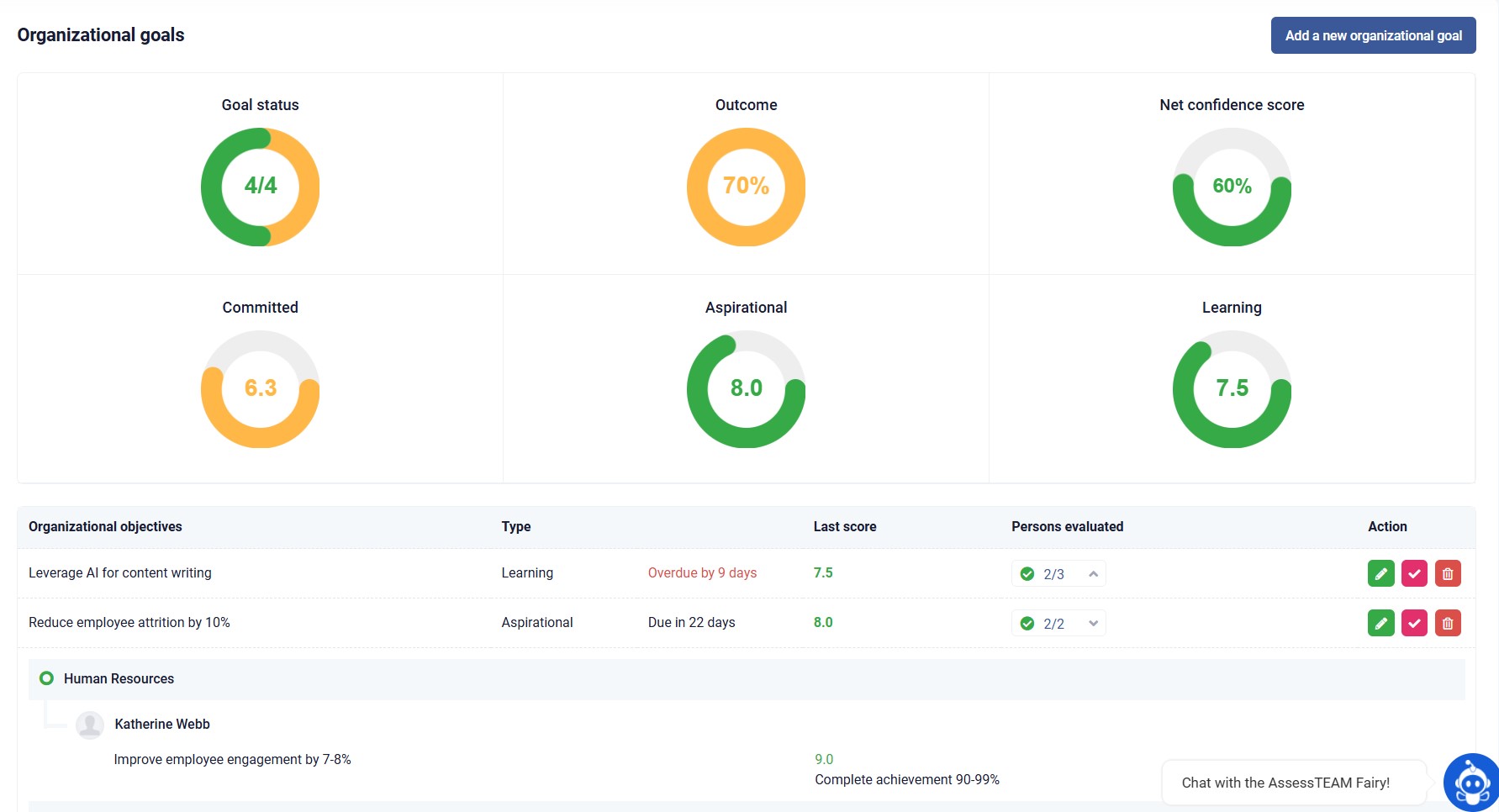
Organizational goals are only available for the Time tracking and Profitability plan customers. Please follow these steps to add a new organizational goal:
Step 1: Log in to your AssessTEAM account and visit Administrative Tools > Goals & OKRs > Organizational goal.
Step 2: Click on “Add a new organizational goal” and enter the goal’s title and other details, including type, evaluation send date, frequency of evaluation, and start and end date of the goal.
Step 3: Enter the first key result. Assign members or teams who would be working on this key result, assign evaluators and the due date. Click on “Add a new key result” button to add more key results.
Step 4: Click on Save button and click confirm to schedule the OKRs evaluations.
To modify an organizational goal, please visit Administrative Tools > Goals & OKRs > Organizational goal and click the “Edit” button.
To delete an organizational goal, please visit Administrative Tools > Goals & OKRs > Organizational goal and click the “Delete” button.
To mark an organizational goal as completed, please visit Administrative Tools > Goals & OKRs > Organizational goal and click the “Complete” button.